Amazon UK

Showing posts with label WPBeginner. Show all posts

Thursday, 2 January 2020

How to Fix Your Connection is Not Private Error (Site Owners Guide)

Are you seeing ‘Your connection is not private’ error on your WordPress website? This is the error message you’ll see on Google Chrome.

The same error will be displayed on all modern browsers with slightly different messages, and it can be a bit confusing for beginners to troubleshoot.

In this site owner’s guide, we’ll show you how to easily fix ‘Your connection is not private’ error on your website. We’ll also talk about why this error appears, and how you can avoid it in the future.
Fixing your connection is not private error in WordPress

What is ‘Your Connection is Not Private’ Error?

‘Your connection is not private’ error appears on websites using the SSL / HTTPs protocol when your browser is unable to validate the SSL certificate issued by the website.

Basically, any website using SSL / HTTPs protocol sends a security certificate information to users browsers upon each visit. Browsers then try to validate the certificate using the public key accompanying the certificate.

If it checks out, then users browser encrypts the data using the private key sent by your website. This encryption secures the data transfer between a user’s browser and your website.
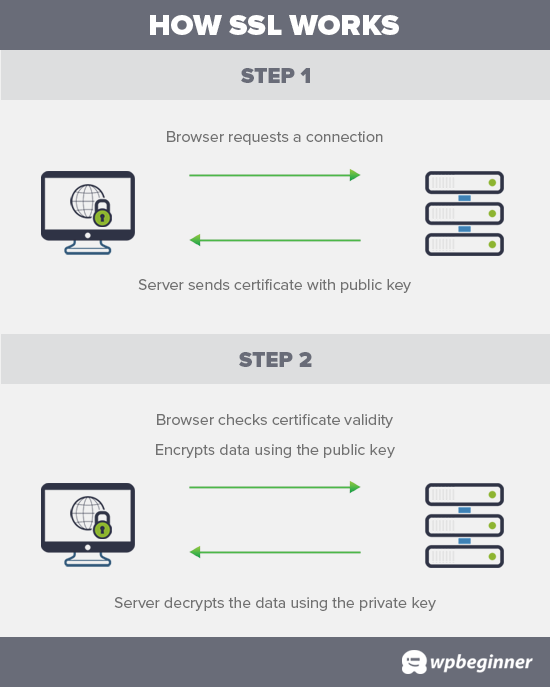
How SSL works to protect data transfer

However, if the browser is unable to validate the certificate, then it cannot transfer the data securely and displays the error that your connection to the website is not private.

This is a common SSL error and appears on all modern browsers with slightly different error messages.

Google Chrome

Google Chrome will show this error as ‘Your connection is not private’.
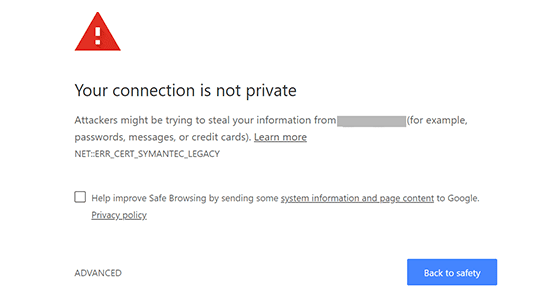
Your connection is not private error in Google Chrome

Mozilla Firefox

Firefox would show this error as ‘Your connection is not secure’.
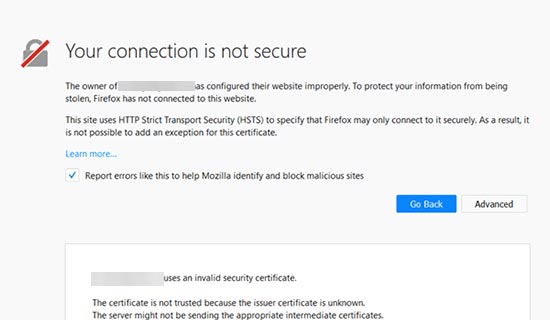
Connection not secure error in Google Chrome

Microsoft Edge

Microsoft Edge browser displays it with the ‘Your connection isn’t private’ or ‘This site isn’t secure’ error message.
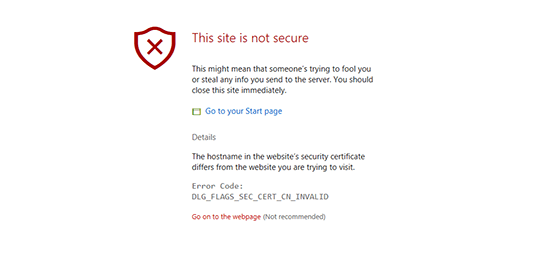
This site is not secure - Microsoft Edge

Safari, Brave, and other browsers will display similar messages.

Why This Error Message Occurs?

Now you may be wondering, what caused ‘Your connection is not private’ error to appear on your website. This error is peculiar because in many cases it may show up without you making any changes to your website.

It can be caused by several reasons. For instance, if a user’s computer clock is out of sync, then it may show the certificate as expired.

Another scenario is that a certificate previously issued by your website is stored in user’s browser. The private key sent by your website does not match the old certificate and the browser fails to validate the secure connection.

Last but not least, the most obvious reason you’d see this error is if the SSL certificate on the website has expired.

The following are the steps you can take to fix the ‘Your connection is not private’ error. You can also try these steps even when the error is appearing on other websites as well.

1. Force Reload a Page
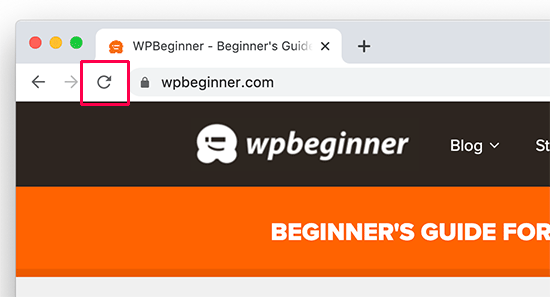
Reload a page

The first step is to try turning it on and off method. Start by simply shutting down the browser app and then reopening it.

After that, try to visit the website. If you can still see the error then try force reloading the page. Use Command + R keyboard shortcut on Mac or CTRL + Reload button on Windows.

This will force the browser to ignore the cached version of the page and load the latest version.

2. Check with Multiple Browsers

Test in multiple browsers

If you are only checking it with one browser on the same machine, then try visiting the website using any other browser app.

This step will eliminate the possibility that the issue is limited to a specific browser. If it is, then reinstalling that browser would fix the issue.

Otherwise, you can move on to try the next steps in this guide.

3. Clear Your Browser Cache

Clear your browser cache

You may have heard this as the first advice for many internet and website-related issues. It is true in this case too. Your browser may be loading files from an older version of your website which may be triggering the issue.

We have a complete guide on how to clear browser cache for all major browsers with step by step instructions.

Once you have cleared the cache, try visiting the website again to see if the issue has resolved. If it hasn’t, then continue reading.

4. Check Your Computer’s Clock

Normally, your computer syncs its date and time settings automatically. However, if your computer has incorrect date/time settings, then this may cause your browser to think that a website’s SSL certificate is invalid.

Sync Date / Time on Windows Computers

If you are using a Windows computer, then simply right click on the taskbar and select ‘Adjust Date and Time settings’.
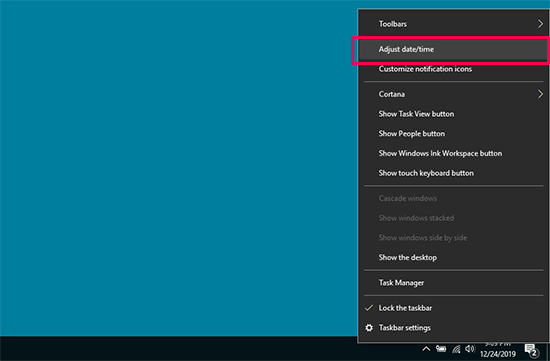
Adjust date and time in Windows

This will open date and time section in the Windows Settings app. Make sure that your computer’s date and time is correct and ‘Set time automatically’ option is checked.
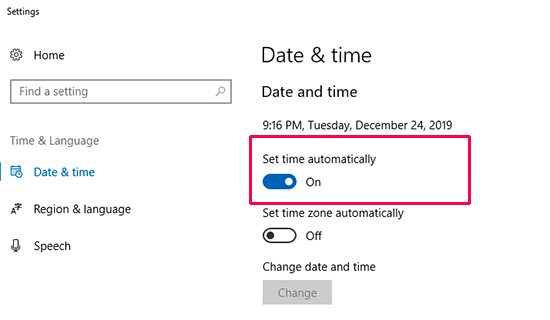
Date and time settings are turned on to automatically sync

Sync Date / Time on Mac Computers

If you are using a Mac computer, then open the ‘Settings’ app and click on the ‘Date & Time’ icon.
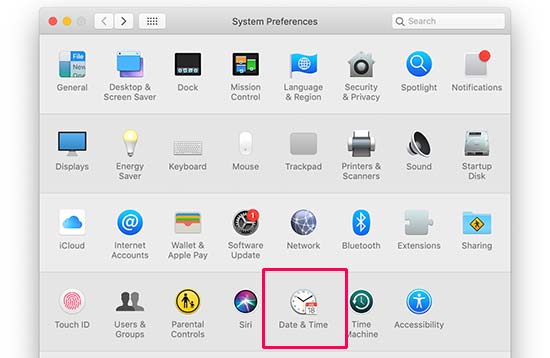
Date and time settings in Mac

Next, switch to the Date & Time tab and make sure that the option next to the ‘Set date and time automatically’ option is checked. If it is not checked, then click on the padlock icon at the bottom left corner of the window to enable this option.
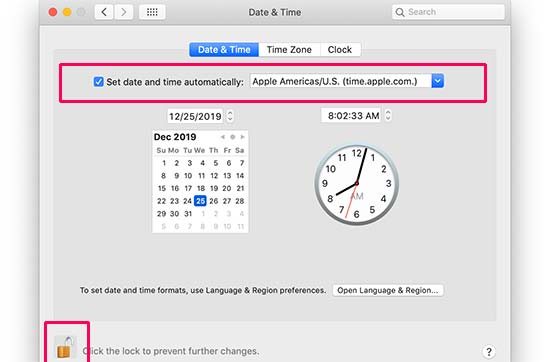
Sync date and time and settings in Mac

5. Turn off Antivirus and VPN Apps

If you are using any antivirus programs on your computer or a VPN service, then you may want to temporarily turn them off.

This would allow you to verify that these apps are not blocking the SSL certificate and forcing your browser to show the ‘Your connection is not private’ error.

If you discover that one of these apps was causing the problem, then you can reach out to their support team for help.

6. Check Your SSL Certificate Expiration

Another common reason for this error is expired SSL certificates. These certificates are issued for a specific period and expire when they reach the end of that period.

You can check your certificate’s expiration date by clicking on the padlock icon next to your website and selecting the certificate option.
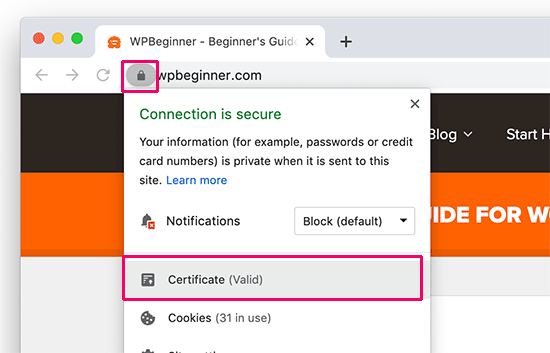
Checking a website's SSL certificate details

This will bring up your SSL certificate details. You can clearly see certificate expiration date in the window.
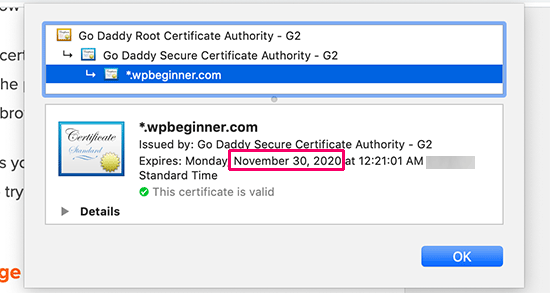
SSL expiry date

Most domain registrars and SSL certificate providers will automatically notify you when your SSL certificate needs to be renewed.

If you are using a free SSL certificate, then most WordPress hosting companies have scripts in place that automatically renew them upon expiration.

However, those mechanisms may fail and your SSL certificate may expire. Don’t worry, you can easily fix that by simply replacing your SSL certificate.

Instructions to do that may vary depending on your certificate provider and hosting company. In fact, many hosting companies will update it for you upon request.

7. Test Your SSL Server
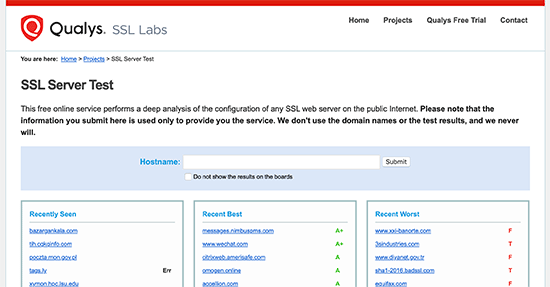
SSL test tool

If you have been setting up your SSL certificate manually by yourself, then you may want to make sure that all configuration settings are working properly.

To do that you can run an SSL server test. This test allows you to check the complete SSL set up of your website.

This includes TLS protocol, cross-browser testing, and SSL/HTTPs set up checks. The scanner will also provide you detailed information about each test.

8. Check Certificate Domain Name

You can set up your SSL certificate to work for different variations of a domain name. For example, www and non-www URLs.

If your certificate is only set up for one variation of your domain name, and you access the website using another variation, then this would result in ‘Your connection is not private’ error. Google Chrome will show the error code as SSL_ERROR_BAD_CERT_DOMAIN.

This error could also appear if you have recently moved your website to a new domain name or server.

One easy solution is to issue a free SSL certificate for both variations of your domain name. You can request your hosting provider to do that for you.

Another solution is to redirect your website visitors to the correct variation of your domain name. See our article, on how to set up redirects in WordPress for more details.

We hope this article helped you learn how to fix ‘Your connection is not private’ error in WordPress. You may also want to bookmark our guide on fixing the most common WordPress errors.

If you liked this article, then please subscribe to our YouTube Channel for WordPress video tutorials. You can also find us on Twitter and Facebook.

The post How to Fix Your Connection is Not Private Error (Site Owners Guide) appeared first on WPBeginner.


from WPBeginner https://ift.tt/2SNiEhN
via IFTTT

Friday, 6 December 2019

5 Best WordPress Business Directory Plugins

Are you looking for the best WordPress business directory plugins?

A business directory helps users discover service providers in a particular niche or category. At the same time, it helps those businesses find customers and opportunities.

As a website owner, you can even make money online by selling paid listings on your business directory.

In this article, we have hand-picked some of the best WordPress business directory plugins to help you save some time and money.

Best business directory plugins for WordPress

Best WordPress Business Directory Plugins

A good business directory plugin allows you to easily create lists of businesses organized by location, category, and other parameters.

Business directories help users find new vendors while helping businesses connect with customers and other businesses.

Unlike a Google Search, a business directory is made up of curated listings with description, reviews, and photos. This makes them more useful for users looking for specific businesses.

You’ll be looking for a business directory plugin that allows you to do all that. We will also highlight business directory plugins that allow your users to submit listings, integrate paid submissions, and search options.

That being said, let’s take a look at some of the best WordPress business directory plugins that you can use.

1. Formidable Form

Formidable Forms

Formidable Forms is one of the best WordPress form builder plugins on the market. It allows you to create advanced forms and add them to your website.

Using the real estate listings template, you can create a form that users will use to submit their entries into your directory. Then, you can display the business directory listings on a WordPress page.

It comes with many premium add-ons to add more features and functionality to your WordPress business directory. Formidable Forms fully supports MailChimp, PayPal, WPML, and WooCommerce.

For more details, check out our step by step tutorial on how to properly create a web directory in WordPress using Formidable Forms.

2. Business Directory Plugin

Business Directory Plugin

Business Directory Plugin is a free WordPress plugin to create a simple business directory. It comes with basic features required to run a web directory like customizable form fields, accepting payments for listings, etc.

It allows you to sort entries into categories and tags, create featured entries, and customize entry forms.

If you want to access more features and add-ons, then it has a pro version as well. The premium features include multiple modules, Google Maps support, user ratings, zip code search, file upload, and more.

3. Connections Business Directory

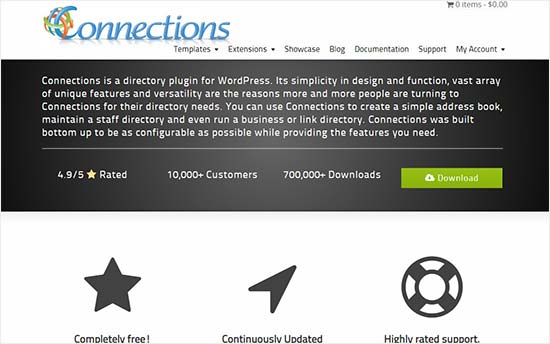
Connections

Connections is a powerful business directory plugin for WordPress. It comes with a set of custom fields that can be used to create almost any kind of web directory. In the privacy settings, you or your users can set privacy level for certain custom fields like business phone numbers or internal messages.

Displaying your directory on the front-end is very easy. You need to add a simple shortcode to your directory page. It offers custom shortcodes with extensive options to customize the appearance of your business directory.

Connections plugin also comes with template support so that you can choose a layout for your listings from pre-built directory templates.

4. GeoDirectory

GeoDirectory

As the name suggests, GeoDirectory allows you to create a location-based business directory like Yelp, TripAdvisor, YellowPages, etc. Using a simple interface, your users can submit listings to the directory. These listings or entries are pointed on the map, and your users can search for locations, businesses, neighborhoods, etc.

You can monetize your website by selling the directory listings. GeoDirectory also allows you to display event listings, create multi-location directories, and add payment gateways.

5. Name Directory

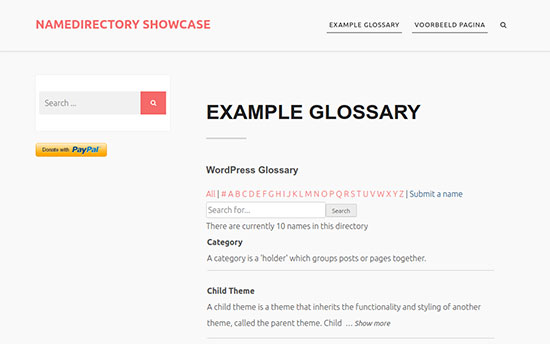
Name Directory

Name Directory is another free WordPress directory plugin. It allows you to create a business or personal directory easily. Using the configuration options, you can select a layout and customize plugin functionality.

It supports shortcodes to display directory listings on a WordPress post or page. You can sort the entries to show new listings on top of the page, allowing those entries to gain more exposure.

We hope this article helped you find the best WordPress directory plugins. You may also want to check out our list of the best email marketing services for small business.

If you liked this article, then please subscribe to our YouTube Channel for WordPress video tutorials. You can also find us on Twitter and Facebook.

The post 5 Best WordPress Business Directory Plugins appeared first on WPBeginner.


from WPBeginner https://ift.tt/2TTxd0c
via IFTTT
Wednesday, 11 September 2019

Wordfence vs Sucuri – Which One is Better? (Compared)

Wordfence and Sucuri are two of the best and most popular WordPress security plugins on the market.

They are both highly recommended and incredibly helpful in keeping your WordPress site secure. This makes it hard for beginners to choose which one is right for them.

While Sucuri and Wordfence have a lot of similar features, each has its own pros and cons.

In this article, we will compare Wordfence vs Sucuri to share which one is better for overall WordPress security in our expert opinion.

Sucuri vs Wordfance which one is better for security

Comparing Wordfence vs Sucuri – What to Look For?

Wordfence and Sucuri are the two top WordPress security plugins. They both offer comprehensive protection against brute force attacks, malware infection, and data theft.

As a website owner, you need to choose a security plugin that not only protects your website but does it efficiently. You would also want something that requires little maintenance, so you can focus on growing your business.

Lastly, you need to pick a security plugin that is easy to use and does not require technical skills to setup / maintain.

For this guide, we will be comparing Sucuri vs Wordfence side by side. Our comparison is divided into the following categories:

  • Ease of use
  • Website Application Firewall (WAF)
  • Security Monitoring and notifications
  • Malware scanner
  • Hacked website clean up

That being said, let’s take a look at how Wordfence vs Sucuri stack up and which one comes out as the best overall WordPress security plugin.

Ease of Use

Website security is a highly complex and technical field. That’s why our first comparison category is ease of use.

Let’s see how easy it is to use Wordfence vs Sucuri to protect your website.

Wordfence – Ease of Use

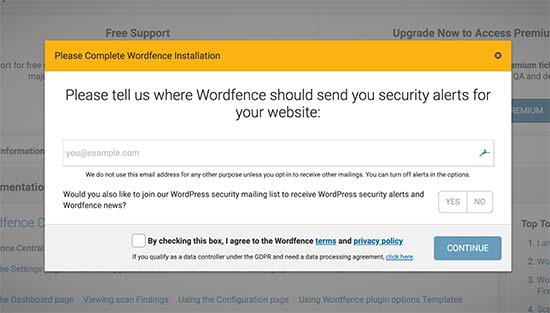
Setting up Wordfence is quite easy. Immediately after installing the plugin, it will ask you to provide an email address where you would like to receive security notifications. You would also need to agree with their Terms of service.

Wordfence setup

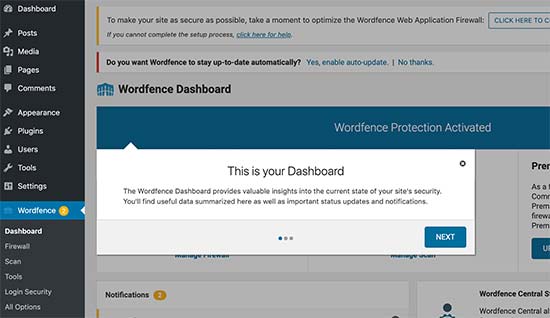
After that, you will see an onboarding wizard that will help you become familiar with the Wordfence dashboard. It points out where you’ll see security notifications and scans.

Wordfence dashboard

The plugin will turn on the website application firewall in the learning mode and run an automatic scan in the background. Depending on the size of your website, you will see notifications when the scan is finished.

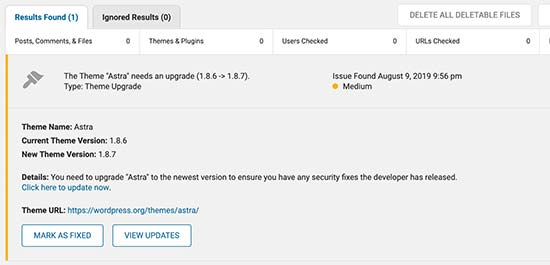
Clicking on a notification will show its details with recommended action that you need to take. For example, here it showed us that our WordPress theme has a newer version available.

Security issues

The firewall by default runs as a WordPress plugin which is not very effective. Wordfence does allow you to run it in the extended mode for better protection, but you’ll have to set it up manually (more on this later).

The basic Wordfence plugin setup is quite simple and does not require too much user input. The user interface is a bit cluttered which may make it difficult for beginners to find certain settings / option.

Sucuri – Ease of Use

Sucuri offers a cleaner user interface with no unnecessary prompts popping up on the screen. It also runs a quick scan upon activation, and you will see notifications on the plugin’s dashboard.

Sucuri dashboard

Sucuri’s website application firewall (WAF) is a cloud-based firewall which means it does not run on your server. In other words, no technical maintenance required on your end.

You will need to add your API key and configure DNS settings for your domain name. This will allow the firewall to catch malicious traffic before it even reaches your WordPress hosting server.

Once setup, you will not need to worry about updating or maintaining it in the future.

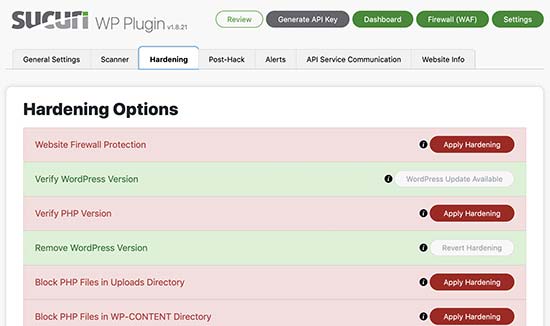
Sucuri also makes it easy to perform recommended security hardening settings on your website. All you need to do is click to apply various security hardening setting.

Hardening WordPress security with Sucuri

The overall user interface is nice. However, users will still need to dig deeper to find options that they are looking for.

Updating nameservers on domain registrar is an additional step that’s required to setup Sucuri’s firewall, and it can be a bit difficult for some non-techy users. The good thing is that most popular domain registrars like Domain.com, GoDaddy, etc will be able to help you set it up.

Winner: Sucuri

Website Application Firewall (WAF)

A web application firewall monitors your website traffic and blocks common security threats. There are different ways to implement a firewall (application based vs cloud based).

We believe cloud based firewalls are more efficient and reliable in the long run.

Both Sucuri and Wordfence offer website application firewall, let’s see how they differ.

Wordfence Website Application Firewall

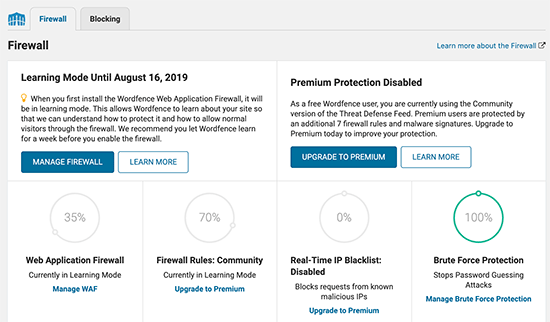
Wordfence offers a website application firewall that monitors and blocks malicious website traffic.

Wordfence firewall

This is an application-level firewall, which means that it runs on your server and is less efficient than a cloud-based firewall.

By default, Wordfence turns it on with the basic mode. This means the firewall runs as a WordPress plugin, so before an attack can be blocked, WordPress has to load. This can take up a lot of server resources, and it’s not efficient.

To change that, you will need to manually setup Wordfence firewall in the extended mode. This will allow Wordfence firewall to monitor traffic before it reaches your WordPress installation.

Since it’s an endpoint firewall, Wordfence can only block traffic once it has already reached your hosting server. In case of a DDOS attack or brute force attempt, your server resources will still be affected and your website performance will be down. It may even crash.

When you first activate Wordfence, their firewall is in learning mode. It learns how you and other users access your WordPress website. During this time several firewall rules are not applied to make sure that legitimate website users are not accidentally blocked.

Sucuri Website Application Firewall

Sucuri offers a cloud-based website application firewall, which means that it blocks suspicious traffic even before it reaches your hosting server.

Sucuri WAF

This saves you a lot of server resources and instantly improves your website speed. Sucuri’s CDN servers are located in different regions which is another added bonus for website speed.

To use the firewall, you will need to change your domain name’s DNS settings. This change would allow all your website traffic to go through Sucuri’s servers.

There is no basic or extended mode. Once setup is complete, Sucuri’s WAF would start protecting your website from malicious requests, DDOS attacks, and password guessing attempts.

They have a robust machine learning algorithm that is sophisticated enough to prevent false positives.

Sucuri does let you go from High Security mode to Paranoid mode when you experience DDoS. This makes sure that your website server doesn’t crash.

Winner: Sucuri

Security Monitoring and Notifications

As a website owner, you need to know if something is wrong on your website as soon as possible. A security issue can cost you customers and money.

To receive these notifications, you need to make sure that your WordPress site can send emails. The best way to ensure that is by using an SMTP service to send WordPress emails.

Let’s see how Wordfence and Sucuri handle website monitoring and alerts.

Wordfence Monitoring and Alerts

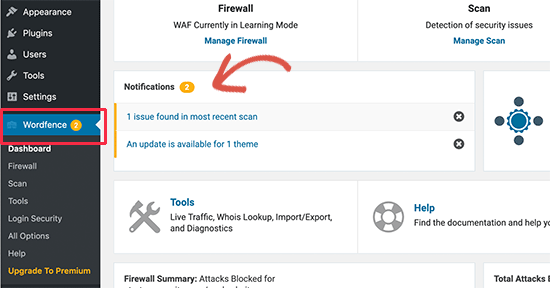
Wordfence has an excellent notification and alerts system. First, notifications will be highlighted next to the Wordfence menu in the WordPress admin sidebar and dashboard.

Dashboard notifications in Wordfence

They are highlighted according to their severity. You can click on a notification to learn more about it, and how to fix it.

However, you would see this only when you login to the WordPress dashboard.

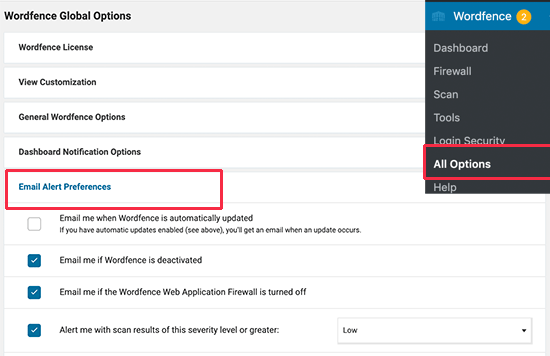
Wordfence also comes with instant notifications via email. To configure email alerts, go to Wordfence » All Options page and scroll down to the ‘Email Alert Preferences’ section.

Email alerts in Wordfence

From here you can turn email alerts on/off. You can also choose the severity level to send an email alert.

Sucuri Monitoring and Alerts

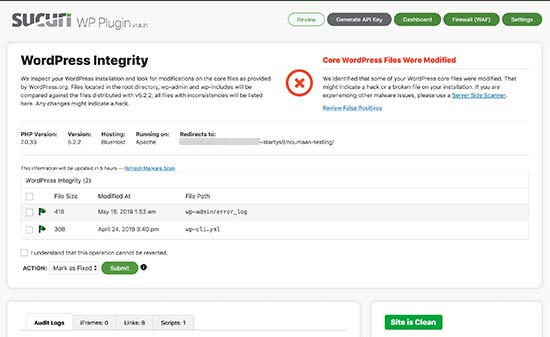
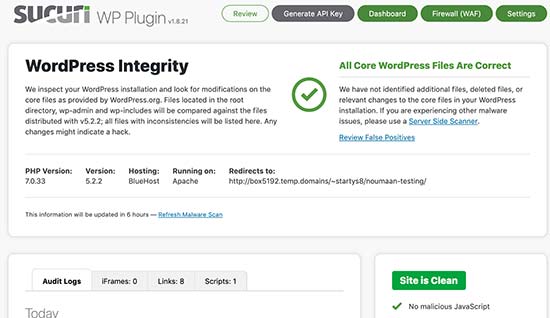
Sucuri also displays critical notifications on your dashboard. The top right corner of the screen is dedicated to display the status of core WordPress files.

Sucuri dashboard alerts

Below that, you’ll see the audit logs and site health status.

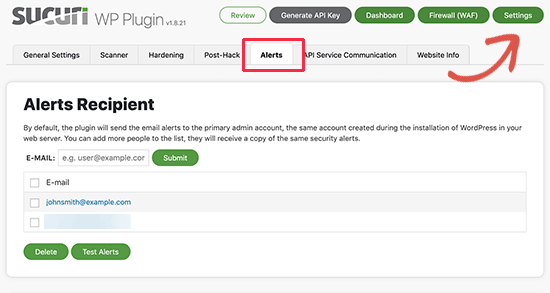
Sucuri comes with a complete alert management system. Simply visit the Sucuri Security » Settings page and switch to the Alerts tab.

Sucuri Alerts

You can add email addresses that you want to be notified. After that, you can further customize email alerts.

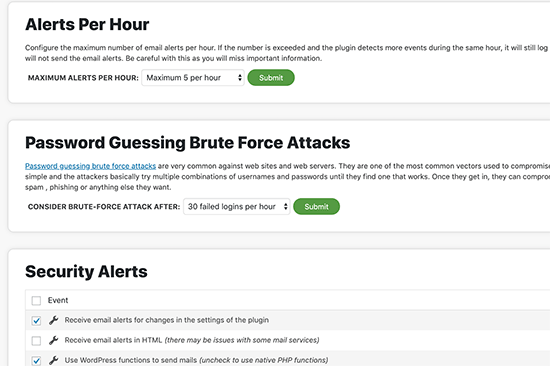
Customize Sucuri email alert notifications

You can choose events you want to be notified about, number of alerts per hour, and customize settings for brute force attacks, post types, and alert email subjects.

Their website application firewall will also send automated high level alerts to your email.

Winner: Tie

Malware Scanner

Both plugins come with built-in security scannerss to check your WordPress site for malware, changed files, and malicious code.

Let’s see how Wordfence and Sucuri scan for malware and other issues.

Wordfence Malware Scanner

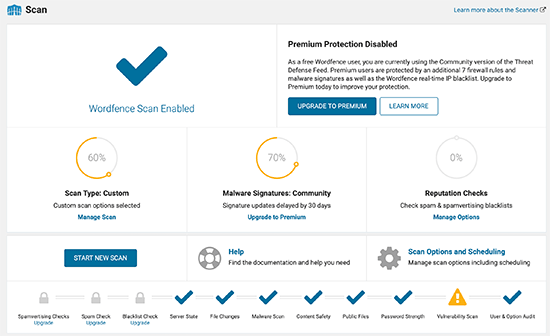
Wordfence comes with a powerful scanner which is highly customizable to meet your hosting environment and security concerns.

By default, the scan is enabled with limited scan settings (to save server resources on shared hosting plans).

Wordfence scanner

For free version, Wordfence automatically decides a scan schedule for your site. Premium version users can choose their own scan schedule.

You can set up the scanner to run in different modes. Some scan options are only available with the premium version.

Wordfence scanner can also check your plugin and themes to match the repository version.

Sucuri Malware Scanner

Sucuri Malware scanner uses Sucuri’s Sitecheck API. This API automatically checks your site against multiple safe-browsing APIs to ensure that your website is not blacklisted.

It automatically checks the integrity of your core WordPress files to make sure that they are not modified.

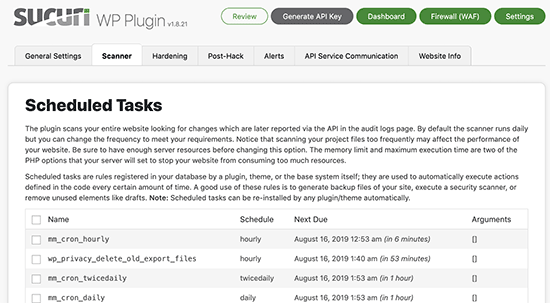
You can customize the scan settings from Sucuri Security » Settings page and clicking on the scanner tab.

Sucuri scanner settings

Sucuri’s free scanner runs on the publicly available files on your website. It is not a WordPress specific scanner, so it is incredibly good at detecting any type of malware and malicious code.

It is also less intrusive on your server resources which is an added bonus.

Winner: Sucuri

Hacked Website Clean up

Cleaning up a hacked WordPress site is not easy. Malware can affect several files, inject links in your content, or block you out of your own website.

Manually cleaning everything by yourself is not possible for most beginners.

Luckily, both Wordfence and Sucuri offer site clean up and malware removal service. Let’s take a look at which one does it better.

Wordfence Site Clean Up

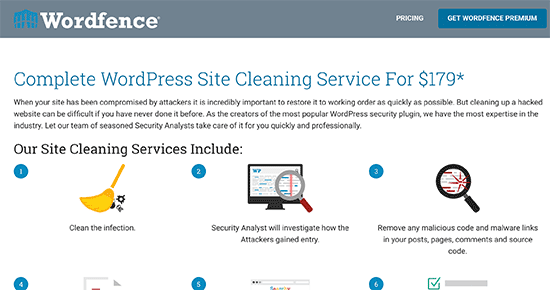
Wordfence site cleanup service is not included in their free or premium plans. It is sold separately as an add-on service.

Wordfence site cleanup service

Site clean up will also give you a premium Wordfence license for one website.

The malware clean up process is pretty straight forward. They will scan your site for malware / infections, and then clean up all affected files.

Their team will also investigate how hackers got access to your site. They will prepare a detailed report of the entire clean up process with suggestions for future prevention.

Sucuri Site Clean up

All paid Sucuri plans include website clean up service. This comes with site clean up, blacklist removal, SEO spam repair, and WAF protection for future prevention.

Sucuri website cleanup

They are really good at cleaning up malware, injected spam code, and backdoor access files.

The process is quite straight forward. You open a support ticket and their team will start working on the cleanup process.

They will use your login credentials for FTP/SSH access or cPanel. During the process, they keep a log of every file they touch and automatically backup everything.

Winnner: Tie

Conclusion

Both Wordfence and Sucuri are excellent WordPress security plugins. However, we believe that Sucuri is the best WordPress security plugin overall.

It offers a cloud-based WAF which improves your website’s performance and speed while blocking malicious traffic and brute force attacks.

Wordfence is a good free option if you don’t mind using a server-side firewall and scanner.

If you are looking for a free cloud-based website firewall, then you can use Cloudflare as a free alternative, but it doesn’t offer comprehensive protection. See our comparison of Sucuri vs Cloudflare.

Editor’s note: We use Sucuri on WPBeginner website to boost our security. See our detailed Sucuri review.

We hope this article helped you compare Wordfence vs Sucuri and find out which one is better for your needs. You may also want to follow our complete WordPress security guide for step by step instructions to protect your website.

If you liked this article, then please subscribe to our YouTube Channel for WordPress video tutorials. You can also find us on Twitter and Facebook.

The post Wordfence vs Sucuri – Which One is Better? (Compared) appeared first on WPBeginner.


from WPBeginner https://ift.tt/34Aide2
via IFTTT
Thursday, 22 August 2019

How to Add a Privacy Policy in WordPress

Do you want to add a privacy policy on your WordPress site?

A privacy policy page is a document required by law that discloses the information you collect about visitors on your website.

It is recommended to add a privacy policy page to your website whether you are a blogger, freelancer, or a business owner.

Now, the problem is most beginners don’t know how to create a legitimate privacy policy, and then display it on their website.

In this article, we will show you how to easily add a privacy policy in WordPress. We will also explain the various elements you must include in your privacy policy page.

How to add a privacy policy page in WordPress

What is Privacy Policy and Do You Need it on Your Website?

All websites collect information about their visitors in different ways.

In many countries (including the United States), websites are required by law to disclose the information they collect about their visitors, and how this information is used.

Here are some of the ways in which a typical WordPress site collects user information.

All websites on the internet should have a privacy policy page. It protects your business from legal issues and also helps build consumer trust.

You also need to add a privacy policy page to comply with the General Data Protection Regulation (GDPR).

For those who don’t know, GDPR is a European Union (EU) law that gives its citizens control over their personal data.

This law applies to every business (including WordPress blogs) around the world, even if you are not from the EU countries.

For more details, you may read our ultimate guide on GDPR and understand its impact on your WordPress site.

What should you include in a Privacy Policy?

The basic requirements for a privacy policy are quite simple. You need to list all the ways you collect or intend to collect user information on your website.

A simple privacy policy page should contain the following information:

  • Information you collect about users visiting your website.
  • Methods used to collect information, e.g. cookies and web beacons, sign up, registration, comment forms, etc.
  • Mention all third-party advertisers collecting user information on your website like Google Adsense.
  • Include links to the privacy policy of each advertising program you participate in.
  • How users can block cookies and opt-out of third party advertisements.
  • Your contact information so that users can reach out if they have questions.

There are many websites on the internet that allow you to automatically generate text for your privacy policy or terms of service pages.

WordPress itself comes with a basic privacy policy generator that you can use.

You can also take a look at WPBeginner’s privacy policy page as an starting point. Simply replace all references to WPBeginner and our parent company with the name of your website or business.

Adding a Privacy Policy Page in WordPress

WordPress makes it super easy to generate a privacy policy page for your website. It also gives you a generic privacy policy template to use with instructions on how to add content to it.

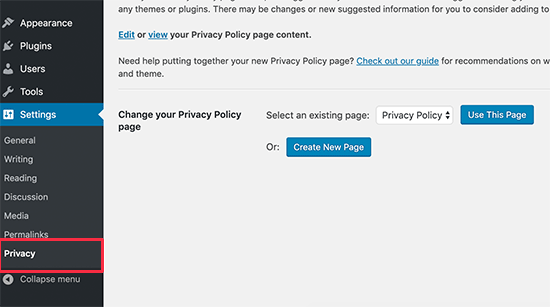
First, you need to visit Settings » Privacy page. You’ll notice that WordPress has already created a Privacy Policy page draft for you.

Privacy policy generator in WordPress

You can click on the ‘Use this draft’ button to save this page as your privacy policy.

You can also click on the create new page button to generate a new Privacy Policy page. WordPress will automatically create a new page and open it for you to make changes.

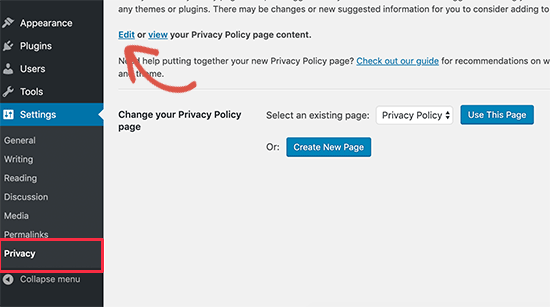
If you are using the default draft, then you need to click on the Edit link to make changes and publish it.

Edit privacy policy page

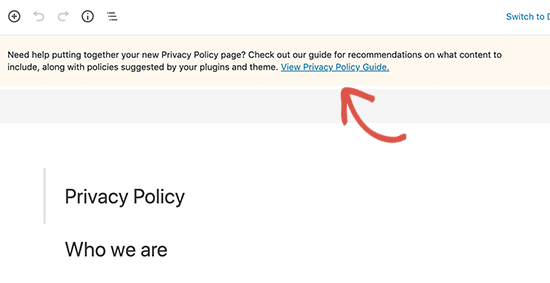
Once you open the privacy policy page for editing, you will see a notification on top with a link to the default WordPress privacy policy page guide.

View WordPress privacy policy guide for tips

The content of the privacy policy also contains instructions on how to edit and change each sections.

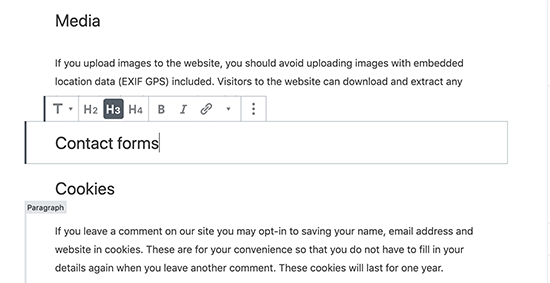
You will notice that it has sections for different ways a WordPress website may collect personal information. For example, comments, login cookies, embeds, and more.

Edit privacy policy sections

It will also have sections with no information below them. For example, contact form and analytics.

As for contact forms, you can mention the information you collect and what it used for.

If you are using WPForms plugin to create contact form, then you can already create GDPR compliant contact forms.

For Google Analytics, you can follow this complete Google Analytics and GDPR compliance guide.

After reviewing the privacy policy page thoroughly, you can click on the Publish button to save your changes.

Adding Link to Privacy Policy Page in WordPress

Most websites display a link to their privacy policy page in the footer area of their website. This way the link appears on every page but does not take space in your main navigation menu.

There are multiple ways to do this.

Let’s start with the easiest one.

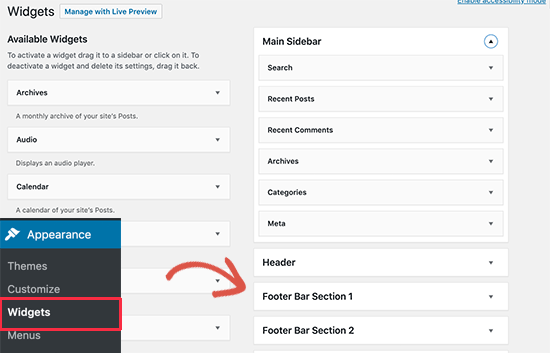
Many WordPress themes come with widget-ready areas in the footer also called Footer sidebar. You can go to Appearance » Widgets page to confirm if your theme has a footer widget area.

Footer widget area

If your theme has one, then you can use the navigation menu widget to display a list of links to your informational pages including the privacy policy.

First, you will need to create a new custom navigation menu.

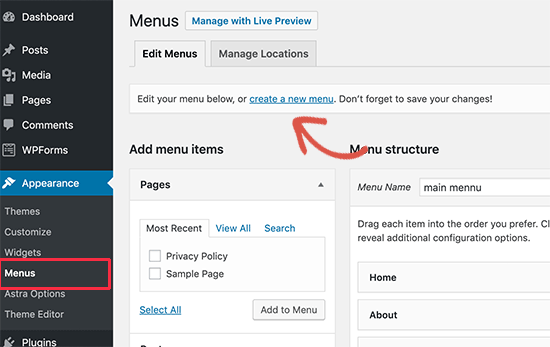
Simply visit Appearance » Menus page to create a new custom menu. You will need to click on the ‘Create new menu’ link on the top.

Creating a new menu in WordPress

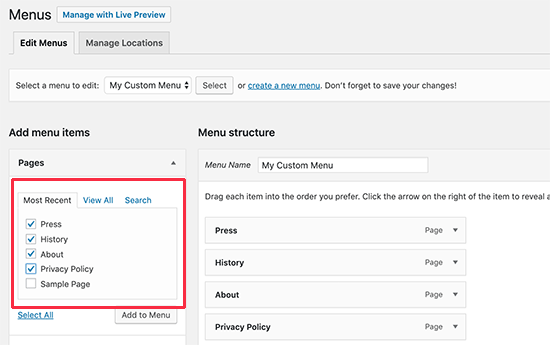
Next, you need to provide a name for your navigation menu. After that, select pages from the left column and then click on the Add to menu button.

Add to menu

You would notice your selected pages appear under your newly created menu. You can now arrange menu items by simply moving them up or down.

Once you are done, don’t forget to click on the Save menu button to store your changes.

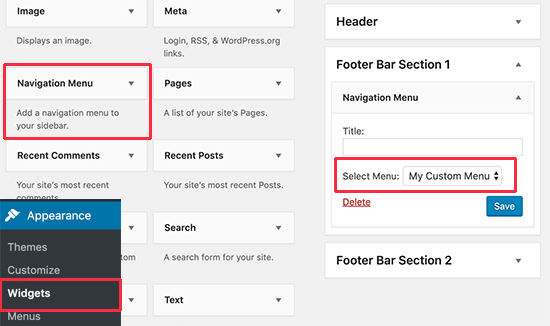
Now go to Appearance » Widgets page and add the ‘Navigation Menu’ widget to your footer widget area.

Navigation menu widget

Now select the custom menu you created earlier in the widget settings and click on the save button to store your changes.

You can now visit your website to see the privacy policy links in footer area of your website.

Privacy policy link

Manually Add a Link to Privacy Policy Page in WordPress

If your theme does not come with a footer widget area or a footer navigation menu, then you can manually add link to your privacy policy page using HTML code.

You’ll need to edit the footer.php file for your theme. If you haven’t done this before, then take a look at our guide on how to copy / paste code in WordPress..

In your footer.php file add the following HTML to an appropriate location just before the </body> tag.

<a href="http://example.com/privacy-policy">Privacy Policy</a>

Don’t forget to replace the href value with the URL of your privacy policy page. You can now save your changes and preview your site to see the link in action.

That’s all! You have successfully added a privacy policy page to your WordPress site.

We hope this article helped you learn how to add a privacy policy in WordPress. You may also want to see our step by step WordPress SEO guide for beginners.

If you liked this article, then please subscribe to our YouTube Channel for WordPress video tutorials. You can also find us on Twitter and Facebook.

The post How to Add a Privacy Policy in WordPress appeared first on WPBeginner.


from WPBeginner https://ift.tt/33O0EGV
via IFTTT
Wednesday, 21 August 2019

How to Add a Mortgage Calculator in WordPress (Step by Step)

Recently one of our readers asked about adding a mortgage calculator in WordPress.

A mortgage calculator is a useful tool for real estate websites because it allows visitors to see if they can afford the property they’re looking at.

In this article, we will show you how to easily add a mortgage calculator in WordPress.

Adding a Mortgage Calculator in WordPress

What is a Mortgage Calculator? Who Needs It on Their Website?

A mortgage calculator is a tool that allows users to get estimates for their mortgage payment, with interest rate and amortization period.

With a mortgage calculator, your website visitors can select a monthly payment or period, and the mortgage calculator form will calculate the costs based on a given interest rate.

If you are making a real website with IDX property listings, then a mortgage calculator will help you get more leads and increase user engagement on your website.

That being said, let’s take a look at how to easily create a mortgage calculator in WordPress.

Creating a WordPress Mortgage Calculator – (Step by Step)

Adding a mortgage calculator in WordPress used to be quite difficult. Either you had to add a piece of code to your site or install a third-party mortgage calculator service.

Now, with Formidable Forms, you can easily create a mortgage calculator with a drag and drop interface.

Formidable Forms Advanced WordPress form plugin

Formidable Forms is the most advanced WordPress form builder plugin on the market. It allows you to create advanced forms like an online quiz, web directory, job listings, calculators and more.

Formidable makes it easy to build advanced forms without writing code. You can use features like conditional logic, advanced calculations, file uploads, repeater fields, dynamic pre-filled fields, and more.

It comes with super useful pre-made templates for more than 20 types of forms. We will be using their mortgage calculator template as a starting point for this tutorial.

Let’s get started.

First thing you need to do is to install and activate the Formidable Forms plugin. For more details, see our step by step guide on how to install a WordPress plugin.

You’ll need at least their Business plan to use the mortgage calculator feature.

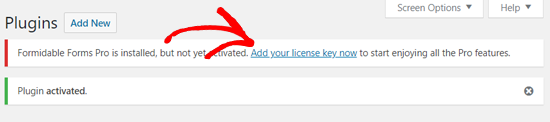
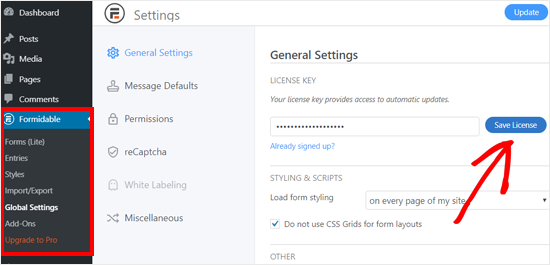
Upon activation, you need to click on the ‘Add your license key now’ option to enter your license details.

Add Your Formidable Forms Pro License Key

This will take you to the Global Settings page where you’ll need to enter your Formidable Forms license key.

Save Your Formidable Forms License key

You can find the license key in your account area on the Formidable Forms website.

Once done, you will see the license activation success message. Now you can simply refresh your page to load the premium features.

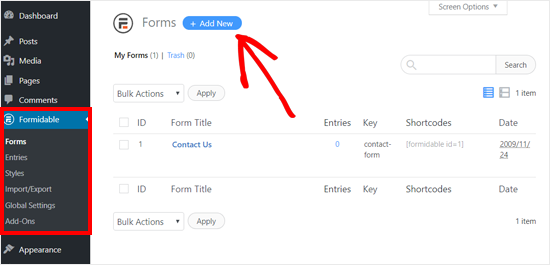
After that, go to Formidable » Forms to add a new form. There, you will see a Contact Us form already added by default. Go ahead and click on the ‘Add New’ button to create a new mortgage calculator form.

Add New Formidable Form

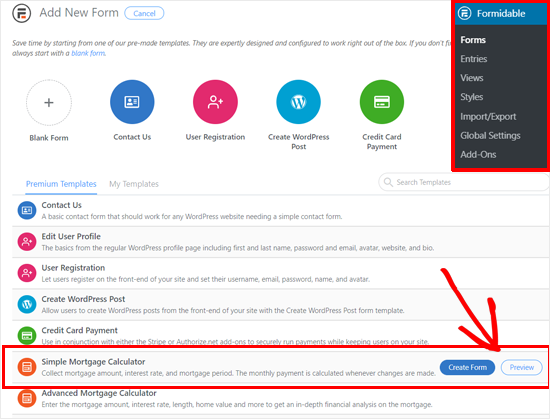
On the next page, you will see many pre-made templates which help you quick get started. You need to locate the mortgage calculator template under the Premium Templates section.

You will notice that there are two mortgage calculator templates available: Simple Mortgage Calculator and Advanced Mortgage Calculator.

Let’s start with the Simple Mortgage Calculator first.

Place your mouse pointer over the template, and then it will show you two buttons: Create Form and Preview.

Choose Simple Mortgage Calculator Template

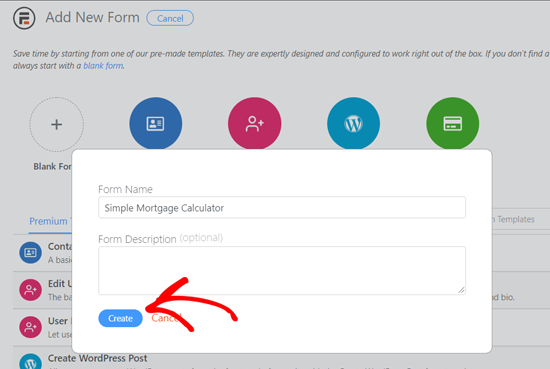
You need to click on the ‘Create Form’ button. This will bring up up a popup window where you need to add a name and description, and then click on the ‘Create’ button.

Create New Simple Mortgage Calculator Form

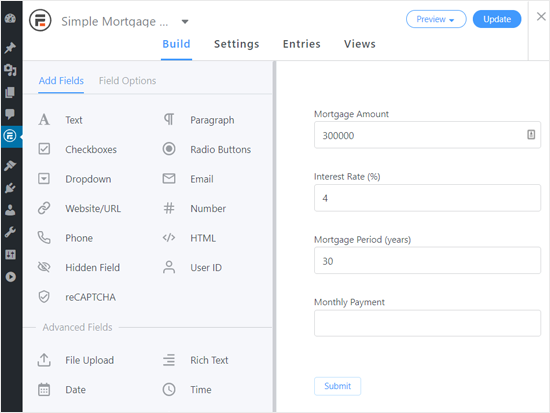
The plugin will now load the Formidable Forms editor interface with your selected simple mortgage form calculator template.

WordPress Simple Mortgage Calculator Form Builder

From here you can simply point and click to customize each form field as needed.

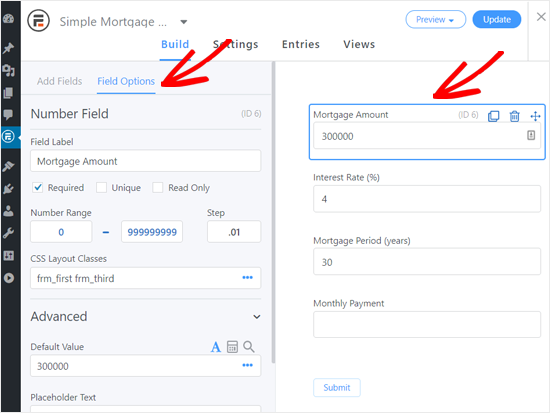
For example, you can change the field label and default value for the Mortgage Amount field.

Customizing Simple Mortgage Calculator Field Options

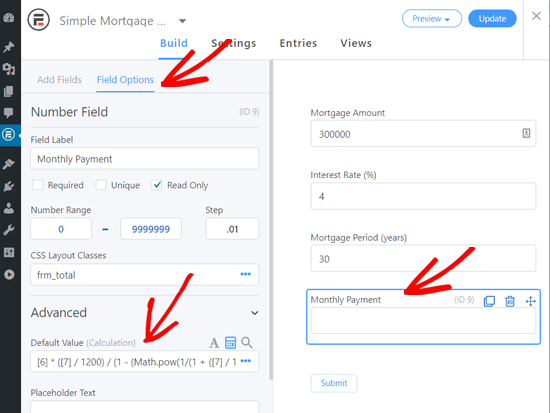
However, you need to be careful about the last field ‘Monthly Payment’ because it includes the calculation formula as the default value.

If you are not a calculation expert, you need to leave it unchanged.

Customizing Monthly Payment Field Options Formidable Mortgage Calculator

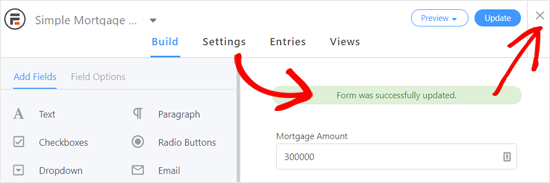
After reviewing all your form fields, click on the Update button at the top right corner of the screen. After that you can click on the Close icon to exit the form editor.

Simple Mortgage Calculator Successfully Created

Your simple mortgage calculator is now ready. The next step is to add it to a page or post where you want to show the calculator.

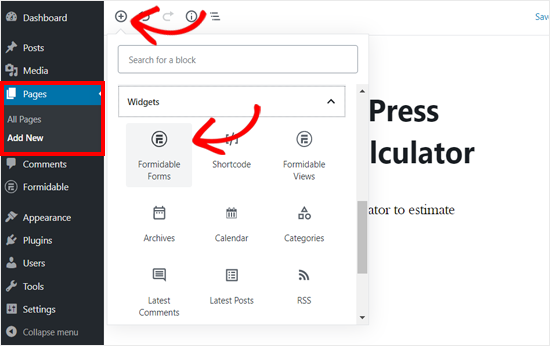
Simply create a new page/post or open an existing one to add the mortgage calculator. On your page editor, click on the ‘Add New Block’ icon, and then select Formidable Forms Gutenberg block.

Add Formidable Forms Block in WordPress Page Editor

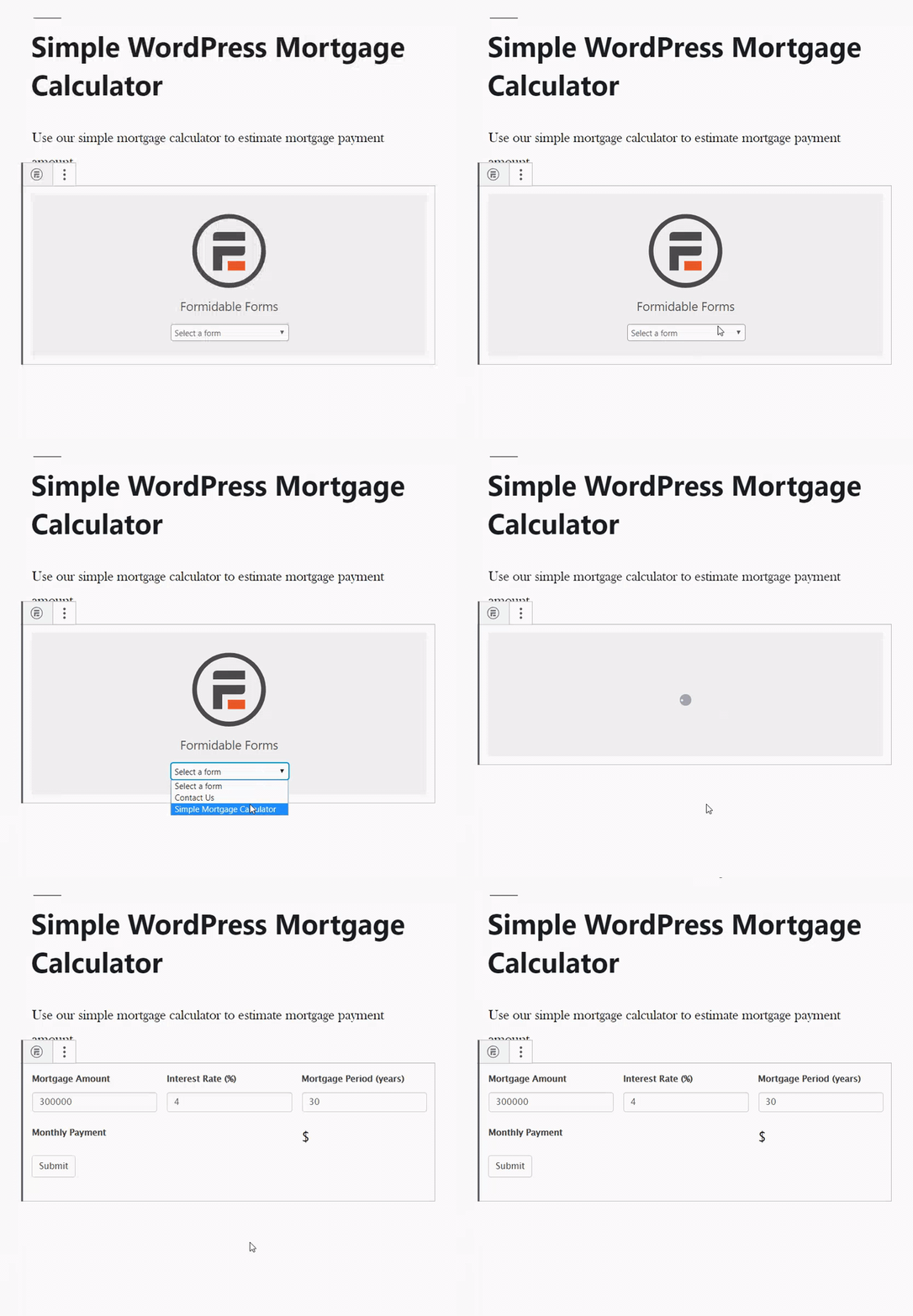
After that, you can see the Formidable Forms block added to your page editor.

Next, you need to select the Simple Mortgage Calculator form in the dropdown option, and WordPress will load the form automatically.

Adding Simple WordPress Mortgage Calculator to Page Editor

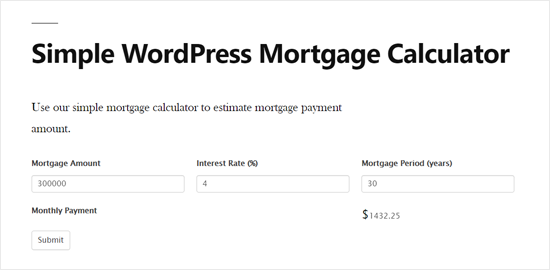
After that, you can publish or update your page, and then preview it to see how the simple mortgage calculator works.

For example, here is how it looks on our demo website.

Simple WordPress Mortgage Calculator Preview

Creating an Advanced Mortgage Calculator in WordPress

The simple mortgage calculator shown above is good for basic mortgage calculation. However, if you want to calculate taxes, insurance payments, PMI, loan to value ratio, etc, then you will need an advanced mortgage calculator for your real estate website.

With Formidable Forms, making an advanced mortgage calculator is also a quick and straightforward job.

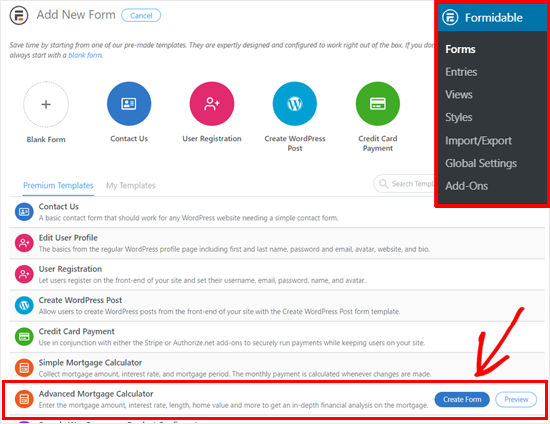
First, you need to visit Formidable » Forms page and click on the Create New button to add a new form.

Add New Formidable Form

After that, take your mouse over the Advanced Mortgage Calculator template and click on the Create Form button.

Select Advanced Mortgage Calculator Template Formidable Forms

Next, WordPress will open a popup window where you can enter a name and description for your form and then click on the ‘Create’ button.

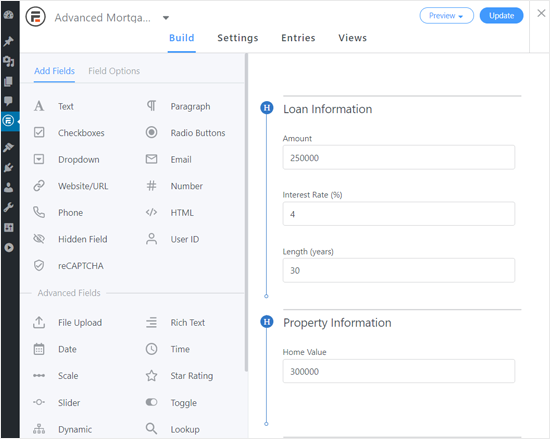
Advanced Mortgage Calculator Editor in Formidable Forms

Now you can customize each form field by clicking on it.

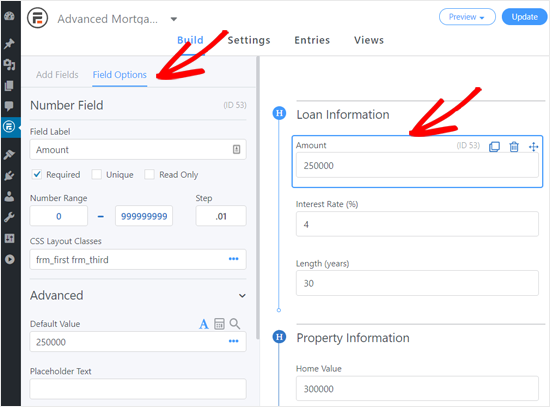
When you click a field, the Field Options will appear in the left column. From there, you can change the field label, default value, etc.

Customizing Field Options in Advanced Mortgage Calculator Form

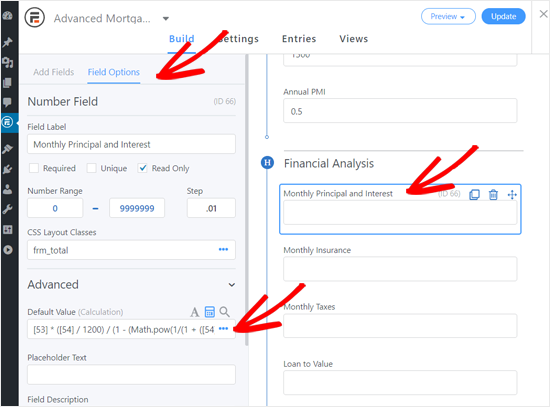
You can review and edit the Advanced Options of Financial Analysis fields. However, if you don’t know the calculation formulas then its best to leave them untouched.

Calculation Fields in Advanced Mortgage Calculator Formidable Forms

Once you are done, click on the Update button at the top right corner, and then click the Close icon.

Your advanced mortgage calculator form is ready; you can now add it your WordPress posts, pages, sidebars, or property listing pages

On your page editor, click on the ‘Add New Block’ icon and then select Formidable Forms block.

Add Formidable Forms Block in WordPress Page Editor

Simply edit a post, page, or listing and add the Formidable Forms block to your content editor.

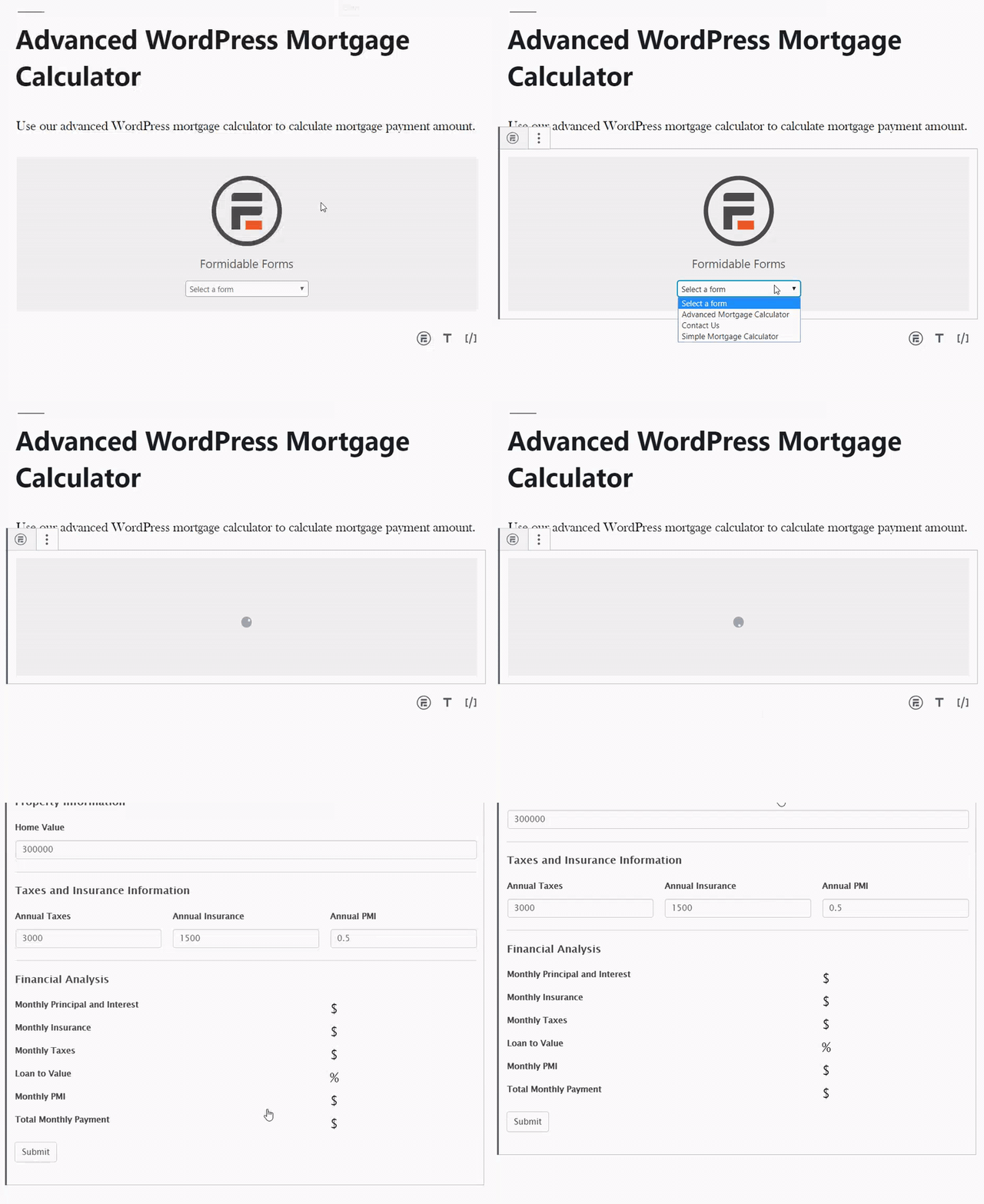
From the block settings, select the Advanced Mortgage Calculator form that you created earlier. After that, WordPress will automatically load the mortgage calculator on the page editor.

Add Advanced WordPress Mortgage Calculator to Page Editor

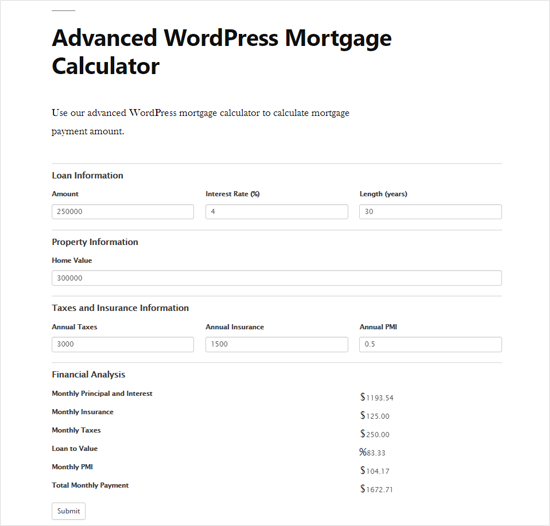
Now you can publish or update your page and preview it to see how your mortgage calculator looks. Here is how the Formidable Forms advanced mortgage calculator looks on our demo website.

Advanced WordPress Mortgage Calculator Preview

As shown in the screenshot above, the Advanced Mortgage Calculator lets your users enter the home value, loan information including amount, interest rate, amortization schedule, annual taxes, insurance, and PMI.

The plugin will then calculate the data and display monthly payments, duration, and other information.

We hope this article helped you learn how to add a mortgage calculator in WordPress. You may also want to see our list of the best email marketing services and best business phone services for small business.

If you liked this article, then please subscribe to our YouTube Channel for WordPress video tutorials. You can also find us on Twitter and Facebook.

The post How to Add a Mortgage Calculator in WordPress (Step by Step) appeared first on WPBeginner.


from WPBeginner https://ift.tt/2MCJhTZ
via IFTTT
CPA Cash Machine